A practical planning example
Three teams refer to the same hall as Main Hall, Assembly Hall and Hall 1. Different names can prevent the team from recognising a shared commitment.
Set up this workflow
- Agree one canonical name for each shared person and resource.
- Load reusable profiles and check room type, capacity and availability before planning.
- Review published commitments before assigning the resource to a new activity.
Prepare, review and publish
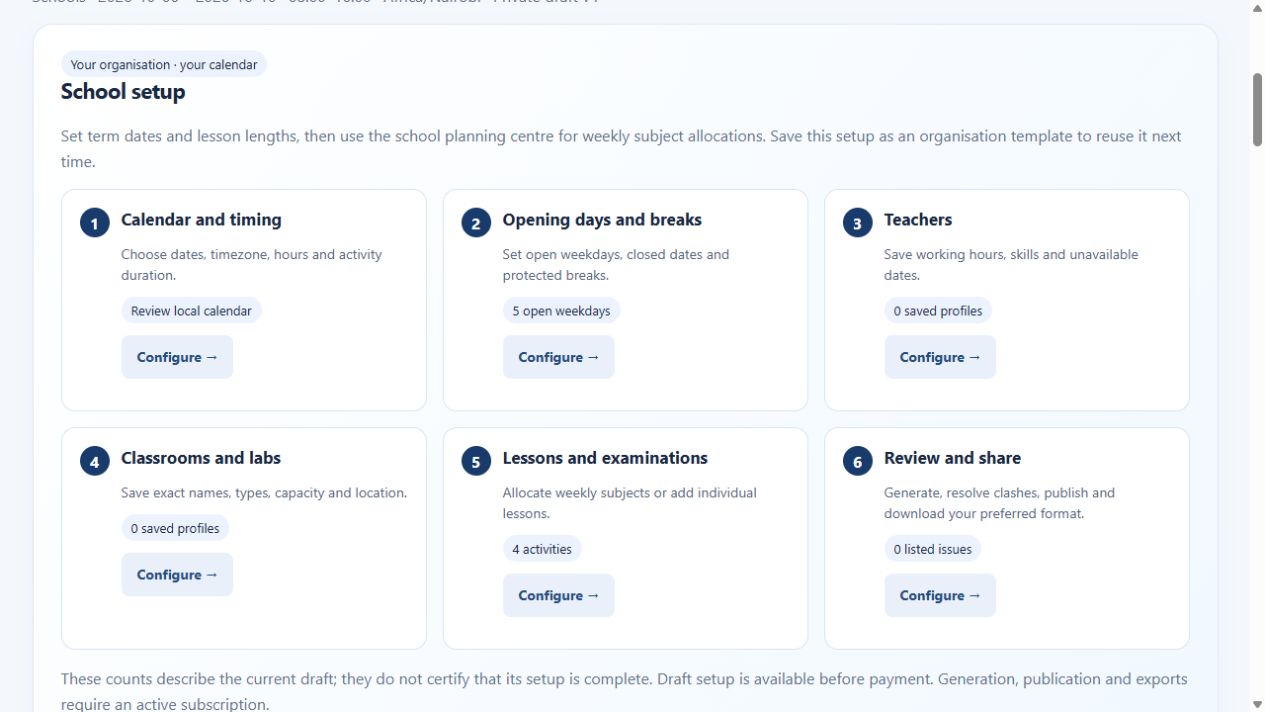
Choose your dates, timezone, open days and breaks. Set person and resource profiles before entering activities. Generate a candidate draft, inspect unplaced work and conflicts, and compare alternatives where useful. Keep manual review in the process: a quality score helps compare candidates and is not a guarantee of an optimal schedule.
What to check before rollout
Start with a small shared-resource pilot and verify that references are consistent in imports and exports. A schedule is only as reliable as the data behind it.
See the application workflow
Account access and outputs
Public demos use sample data. Creating workspaces and entering your own scheduling details require a verified email and active paid subscription. A verified email and active subscription are required for paid generation, publication and timetable exports. Paid access covers all five workspaces within your account scope. Use the live billing page for current pricing and available payment methods. Check exported PDF, Excel, Word or CSV files with the software your team uses before distribution.
Continue your evaluation
Cross department scheduling helps you explore the next part of this workflow.
Buy annual access → · Read application setup and billing help · Explore worldwide scheduling guides
Explore specific scheduling situations
Browse the scheduling use-case library for distinct examples across schools, workforce teams, clinics, events and shared spaces.