A practical planning example
An operations spreadsheet mixes staff initials, full names and different time formats. Importing it without cleanup can create ambiguous assignments.
Set up this workflow
- Use stable names and identifiers consistently across every row.
- Check activity duration, dates, availability and resource references before upload.
- Use the import validation feedback to correct the complete file before saving.
Prepare, review and publish
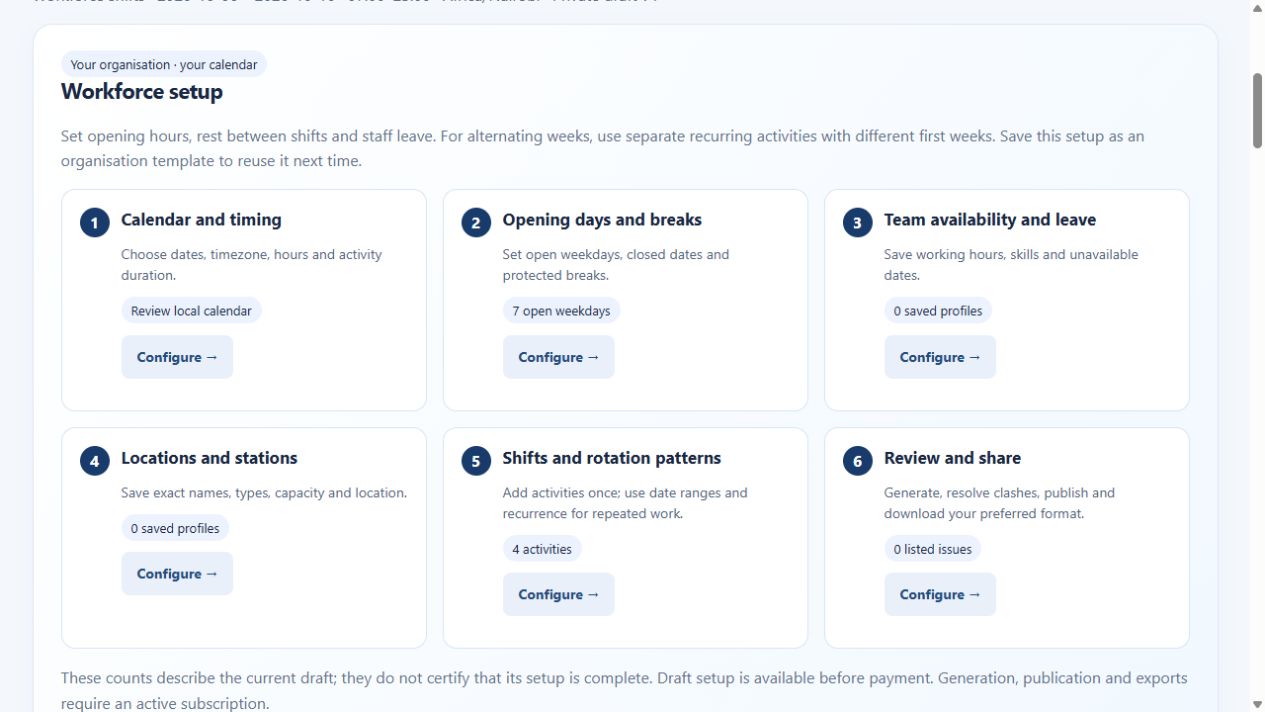
Choose your dates, timezone, open days and breaks. Set person and resource profiles before entering activities. Generate a candidate draft, inspect unplaced work and conflicts, and compare alternatives where useful. Keep manual review in the process: a quality score helps compare candidates and is not a guarantee of an optimal schedule.
What to check before rollout
Reconcile the imported activity count with the source and inspect a sample of every duty type. Archive the original spreadsheet so the pilot can be checked against it.
See the application workflow
Account access and outputs
Public demos use sample data. Creating workspaces and entering your own scheduling details require a verified email and active paid subscription. A verified email and active subscription are required for paid generation, publication and timetable exports. Paid access covers all five workspaces within your account scope. Use the live billing page for current pricing and available payment methods. Check exported PDF, Excel, Word or CSV files with the software your team uses before distribution.
Continue your evaluation
Workforce shift scheduling helps you explore the next part of this workflow.
Buy annual access → · Read application setup and billing help · Explore worldwide scheduling guides
Explore specific scheduling situations
Browse the scheduling use-case library for distinct examples across schools, workforce teams, clinics, events and shared spaces.