A practical approach
Prepare canonical people, room and group names, activity durations, required dates and any qualification or capacity requirements. Use the import template and configure profiles before running the scheduler.
Check before publishing
Verify the source data, total occurrence count and timezone. Start with a representative week and retain a reviewed backup before expanding the rollout.
From preparation to a published timetable
- Prepare the complete activity list and use consistent names for shared people, rooms and groups.
- Create the plan with the correct dates, timezone, opening hours and daily workload limit.
- Configure availability, breaks and any required qualifications, room types, capacities or travel buffers.
- Generate a draft or compare alternatives, inspect the reported issues and make the required corrections.
- Review the actual teaching coverage. Where independent approval is enabled, request review of the final version before publication.
- Publish the checked snapshot, inspect its output and give staff access to their own timetable using their verified account emails.
Working features in VeloRoster
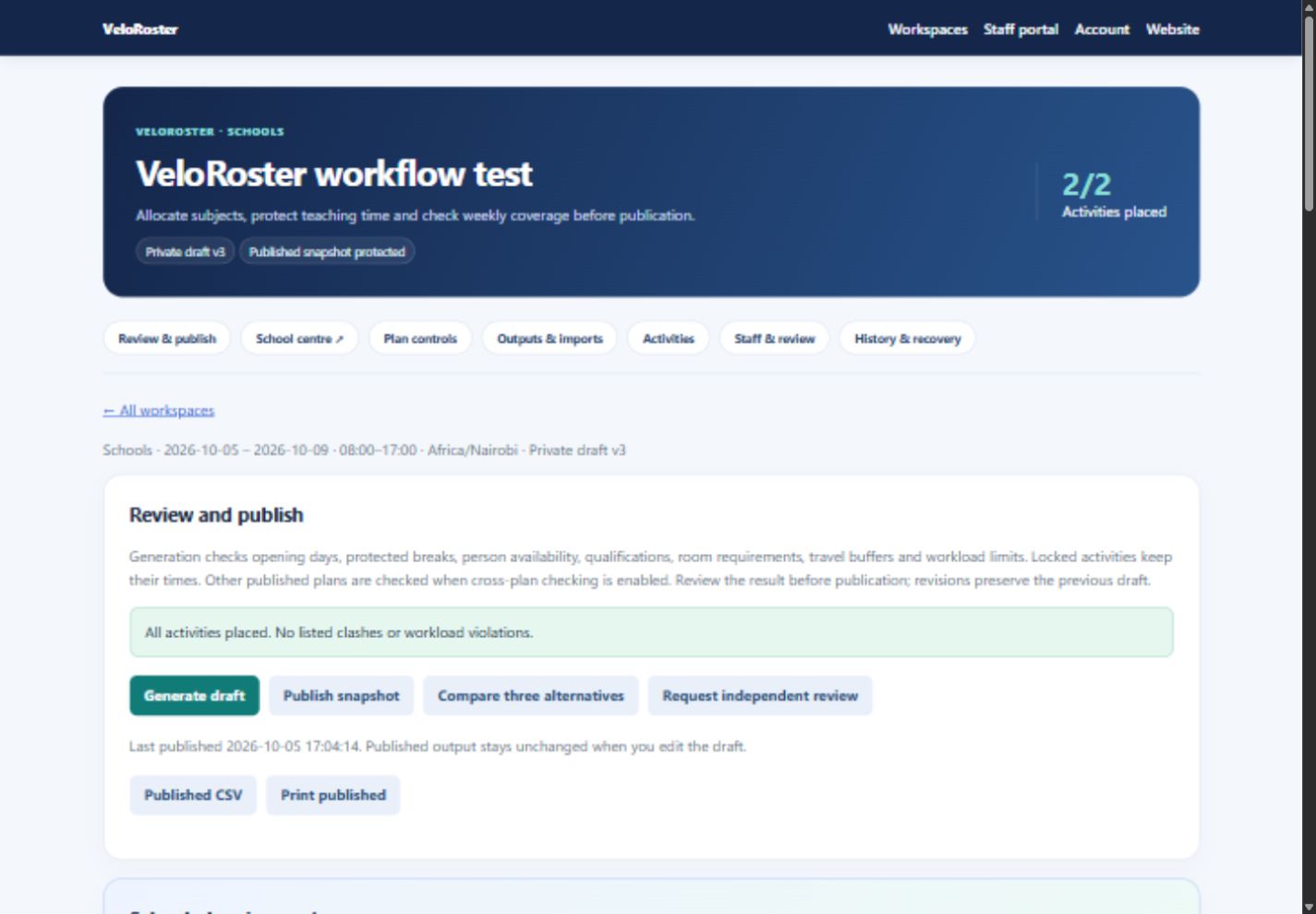
The live app includes all five scheduling workspaces, recurrence within a chosen date range, including every N weeks for alternating patterns, locked activity times, open days and protected breaks, person availability and qualification checks, room types and capacity, travel buffers, and checks against other published plans. Compare three scored alternatives, assign eligible cover with a recorded reason, and use independent reviewer approval before publishing where required.
Staff can sign in with their verified email to see their own published activities. Download native PDF, Excel, Word or CSV files; filter by person, group, room or subject; use a browser timetable grid; and add a school label, JPEG logo and published watermark to supported outputs. CSV and Excel imports validate all rows before saving. Recent revisions and downloadable activity backups support recovery.
School planning and payment access
Set class-subject requirements with teachers, rooms, weekly periods and double lessons, or import allocations from Excel. Prepare missing lesson blocks and inspect weekly coverage, subject distribution and teacher workload before generation. The school output centre offers 12 views: individual class, teacher, room and subject grids; four summaries; a complete lesson grid; and three wall posters. Browser, PDF and Word outputs preserve the selected layouts, and Excel separates groups into worksheets.
Account holders can set up private drafts before payment. A verified email and active subscription are required for generation, alternatives, publication and timetable exports. Pending payment references do not unlock paid tools; verified payment activates the same account.
Your calendar and reusable setup
Each workspace includes a setup guide, editable timing presets, worldwide timezones, organisation templates and fresh drafts for the next period. Choose your own term, season or annual dates. Edit draft dates without deleting activities; review any work outside the revised period. Saved person and resource profiles can be loaded for editing, and saved names are suggested when adding activities. Configure local holidays and rest requirements for your organisation.
Read the application setup and billing help.
Planning scope
A plan supports up to 2,500 activities over your own date range of up to ten years. The generator compares deterministic scheduling strategies and reports work that cannot fit. Configure accurate profiles and review curriculum coverage and local policies before publication. A quality score helps compare drafts; it does not certify the best possible timetable. Proprietary system integrations and individual student course registration are outside this activity-planning workflow.
Explore related guides: Setup, review and recovery
Continue with these connected planning topics, or browse the complete scheduling guidebook.